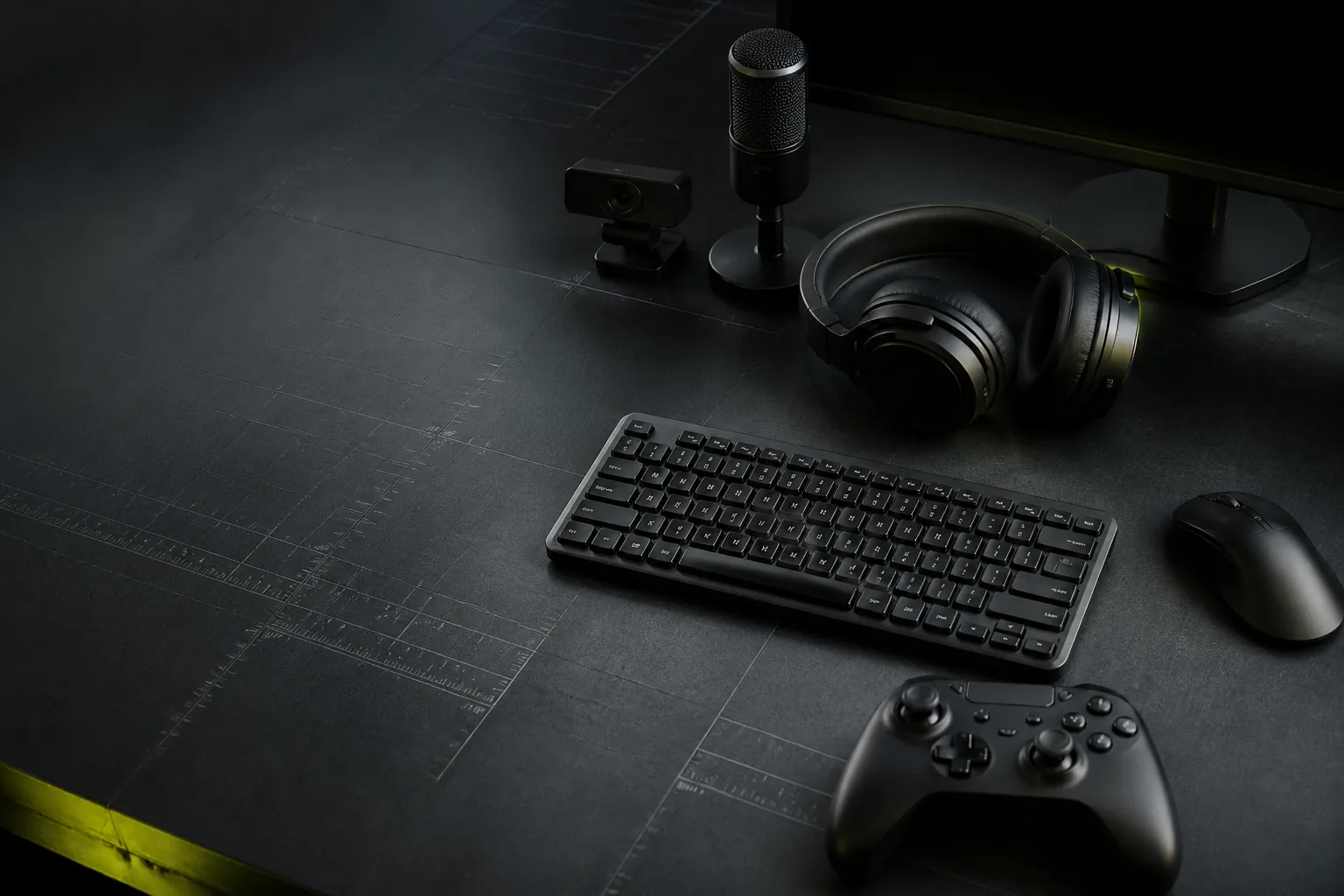
Run free browser-based tests for keyboards, mice, touchscreens, monitors, gamepads, microphones, webcams, and speakers.
InputLab - Free Online Peripheral Testing Tools helps people testing everyday hardware on computers, phones, and tablets. It focuses on Keyboard, mouse, touch, display, gamepad, microphone, webcam, and speaker diagnostics, Browser-based checks with no software install, Device-specific quick tests for desktop and mobile users, Local-first hardware testing with clear results and runs directly in the browser.
What this page checks
Keyboard, mouse, touch, display, gamepad, microphone, webcam, and speaker diagnostics
Browser-based checks with no software install
Device-specific quick tests for desktop and mobile users
Local-first hardware testing with clear results
InputLab - Free Online Peripheral Testing Tools result interpretation
How to use InputLab - Free Online Peripheral Testing Tools
Open InputLab - Free Online Peripheral Testing Tools on the same browser and device you want to diagnose.
Most tools start instantly; camera, microphone, gamepad, pointer lock, and audio tools only ask for browser permissions when needed.
Run the visible peripheral testing tools controls and watch the live result area update before judging the hardware.
Repeat the test once or twice, then compare related InputLab tools if the home behavior looks inconsistent.
How to read the result
InputLab - Free Online Peripheral Testing Tools is most useful when you read the result as a practical browser diagnostic. InputLab is built for fast browser diagnostics, comparison, and troubleshooting, not laboratory certification. A repeated pattern across multiple runs is more meaningful than one isolated spike, missed event, or visual artifact.
Privacy and permissions
Most tools start instantly; camera, microphone, gamepad, pointer lock, and audio tools only ask for browser permissions when needed. Tests are designed to run locally in the browser, with permissions controlled by the browser.
What does InputLab - Free Online Peripheral Testing Tools check?
Run free browser-based tests for keyboards, mice, touchscreens, monitors, gamepads, microphones, webcams, and speakers. It is designed for people testing everyday hardware on computers, phones, and tablets.
Is InputLab - Free Online Peripheral Testing Tools accurate?
InputLab is built for fast browser diagnostics, comparison, and troubleshooting, not laboratory certification.
Do I need to install anything for InputLab - Free Online Peripheral Testing Tools?
No. Most tools start instantly; camera, microphone, gamepad, pointer lock, and audio tools only ask for browser permissions when needed.
Are results uploaded to a server?
The page uses local browser events or browser hardware APIs. InputLab does not need to upload the diagnostic result.
What should I try if the result looks wrong?
Check browser focus, device selection, operating-system settings, and then run related hardware tools to separate a device problem from a browser or permission issue.
About InputLab - Free Online Peripheral Testing Tools
InputLab is the starting point for browser-based hardware diagnostics across desktop peripherals, mobile input surfaces, and everyday audio or video devices. The page is designed as a practical diagnostic, so the live tool appears first and the supporting guide explains what the numbers, colors, motion, or status labels mean after the user has tried the test. This structure keeps the page useful for real troubleshooting while still giving search engines enough plain-language context to understand the exact purpose of the tool.
Run free browser-based tests for keyboards, mice, touchscreens, monitors, gamepads, microphones, webcams, and speakers. InputLab keeps the wording focused on the device being tested: people testing everyday hardware on computers, phones, and tablets. Instead of treating every tool as the same generic checker, this page describes the signal it captures, the mistakes that can affect the reading, and the related checks that help confirm whether a problem comes from the device, browser, operating system, cable, driver, permission setting, or test conditions.
What InputLab - Free Online Peripheral Testing Tools measures
The homepage helps visitors choose the right diagnostic path before they open a dedicated keyboard, mouse, touchscreen, display, gamepad, microphone, webcam, or speaker tool. The most important readings on this page should be judged as patterns, not isolated moments. One odd event can happen because the browser lost focus, the hand slipped, a permission prompt interrupted the run, or the system was busy. Repeated behavior across several attempts is much more useful for deciding whether the hardware needs cleaning, configuration, replacement, or a more specific follow-up test.
The core checks for this page include Keyboard, mouse, touch, display, gamepad, microphone, webcam, and speaker diagnostics, Browser-based checks with no software install, Device-specific quick tests for desktop and mobile users, Local-first hardware testing with clear results, InputLab - Free Online Peripheral Testing Tools result interpretation. These terms matter because they describe the observable behavior that the browser can actually receive. If the browser cannot see a hardware signal, InputLab will not pretend to certify it. The tool reports what is exposed through normal web APIs, which makes the result honest, repeatable, and easy to compare with the rest of the InputLab diagnostics.
How to run the test correctly
Start with the device connected, the page visible, and the browser tab focused. If the tool asks for camera, microphone, full-screen, audio, pointer lock, or gamepad access, approve it only when you are ready to test that feature. Keep the device in the normal position you use every day, because the goal is to reproduce real use instead of creating a perfect laboratory setup that hides the problem.
For better accuracy, use these habits: Choose computer when testing external peripherals. Choose phone or tablet when touch behavior is the main concern. Open camera, microphone, and speaker tools only when the browser permission prompt is expected. Use related tools when one symptom could come from more than one device. After the first attempt, reset the tool if needed and repeat the same action under the same conditions. A second run is especially useful for intermittent faults such as switch bounce, scroll skipping, touch dead zones, microphone noise, webcam lighting changes, gamepad drift, or display artifacts that only appear at certain brightness levels.
How to read the results
A good visit starts with the correct device profile and then moves into a tool page where the real test can run with enough space, controls, and result context. Treat that as the baseline. If the reading is stable and the device behaves normally outside the browser, the hardware is probably healthy for everyday use. If the result is borderline, repeat the test with the same settings before changing drivers or replacing equipment.
If a visitor opens the wrong category, the page may still be useful, but the best result comes from matching the tool to the hardware symptom. When a warning appears, compare it with a related InputLab page before making a decision. For example, a click problem may need the button test and double-click test; a webcam issue may need preview, resolution, and lighting checks; a display issue may need both color and black-level tests. The goal is to narrow the symptom until the next action is obvious.
Accuracy limits and common mistakes
InputLab is built for fast browser diagnostics, comparison, and troubleshooting, not laboratory certification. Browser diagnostics are extremely useful because they run instantly and show what web apps can see, but they are still affected by operating-system settings, browser throttling, power saving, external hubs, Bluetooth quality, display scaling, camera drivers, audio processing, and user technique. InputLab explains these limits so a user does not mistake a browser limitation for a broken device.
The most common mistake is changing more than one variable at a time. If the result looks wrong, avoid switching browser, cable, device, and settings all at once. Change one factor, run the same test again, and record whether the behavior improves. This simple method makes the page more useful for diagnosing real keyboard, mouse, touchscreen, display, controller, camera, microphone, and speaker issues.
Troubleshooting checklist
If a test does not react, start by checking browser support, page focus, device permissions, and whether the selected device is exposed to the browser. Also check whether another application is using the same device, whether a browser extension is intercepting input, and whether the page has permission to run the required API. On laptops and mobile devices, battery saver modes can reduce polling, video frame rate, animation timing, or audio processing behavior, so repeat the test while plugged in if the first result is confusing.
If the problem continues, compare the device on another port, another cable, another browser, or another machine where possible. Consistent failure across environments is a stronger hardware clue than a single failed browser session. Consistent success in another environment points back to local settings, permissions, drivers, firmware, or the active browser profile.
Privacy and local processing
Most tools start instantly; camera, microphone, gamepad, pointer lock, and audio tools only ask for browser permissions when needed. InputLab is built around local browser diagnostics. Camera and microphone pages need permission because the browser protects those devices; pointer lock, full-screen, gamepad, and audio pages depend on browser features for the same reason. The tool does not need an installed app, driver package, or background service for the diagnostic layer.
Local-first testing is important for trust. The page should help users understand their hardware without forcing them to upload camera video, microphone audio, keyboard input, or pointer activity just to get a basic reading. When a browser permission is involved, the user can stop the stream, leave the page, or revoke permission through the browser at any time.
Related testing workflow
After using InputLab - Free Online Peripheral Testing Tools, the best next step is usually one of these related tools: Keyboard Tester, Mouse Click Speed Test, Touchscreen Test, Dead Pixel Test, Microphone Test, Webcam Preview Test. These pages are linked because they test nearby symptoms and help separate one type of hardware behavior from another.
A complete diagnostic workflow usually starts broad, then gets specific. Use the main category page to confirm the device responds, then open the specialized page that matches the symptom. That approach is faster than guessing and more reliable than reading a single number without context.